Modifications to E-Coupon Configurations
To enable users to effectively control and manage the usage of e-coupons through POS systems, the following modifications have been made to the e-coupon configurations.
Feature Setting
The Enhanced Coupons feature setting must be enabled to use this feature.
POS Interface Setting
A new flag, Enhanced Coupon, has been added to the following screens that appear when configuring POS interface settings:
-
Interfaces ➜ On-Premise Settings ➜ Point of Sale ➜ Add
-
Interfaces ➜ On-Premise Settings ➜ Point of Sale ➜ Default Settings
This flag is displayed only when the interface type is selected as InfoGenesis. An information icon added next to this field displays the following message when hovered upon: Enhanced coupon details will be shared to InfoGenesis by activating this toggle.
Configure Coupon Value
Users can now define a maximum value for an e-coupon. A new field, Value, has been added to the Add pop-up screen (All Settings ➜ Templates ➜ Coupons ➜ Add). This is a mandatory field that does not display any value by default. Users can enter a value greater than $0. When $0 is entered, the field is highlighted in red, and the following message will be displayed when hovered upon: Invalid amount.
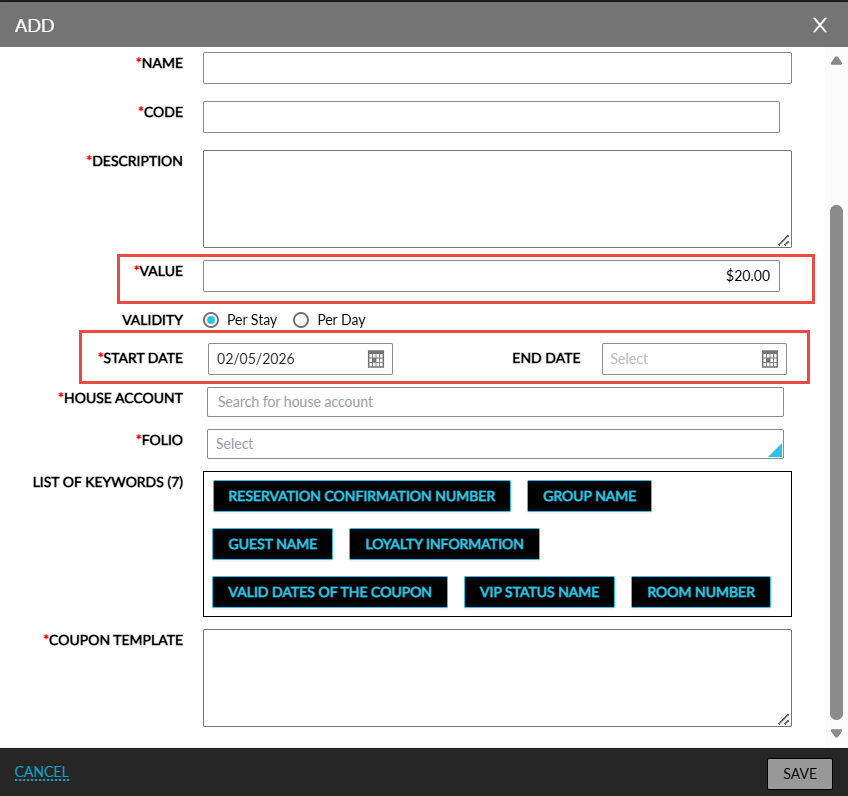
Users are restricted from consuming an amount greater than the defined coupon value for a selected item. For all existing e-coupons, the value will be displayed as a hyphen (-). These coupons can be consumed only up to the total value of the selected item.
Valid Dates for E-Coupons
Two new fields, Start Date and End Date have been added to the Add pop-up screen. Users can define the duration during which an e-coupon is available to be added to reservations in these fields.
-
Start Date: This is a mandatory field that displays the current property date by default. Past dates cannot be selected.
-
End Date: This is an optional field that does not display any default value.
Modify E-Coupons
Any updates made to the existing e-coupons will be applied only to reservations where the coupon has not yet been added.
The following updates are supported:
-
Active status
-
Validity
-
Value
When any of these values are updated and users click Save, a Confirmation pop-up screen appears that displays the following messages based on the updates performed:
|
Scenario |
Message Displayed |
|---|---|
|
Only the Active status is updated |
Changing the E-Coupon's active status will not affect reservations where it has already been added. To update these reservations, remove the E-Coupon from the badge. |
|
When the validity or value is updated |
Changing the E-Coupon's validity/value will not affect reservations where it has already been added. To update these reservations, remove and re-add the E-Coupon. |
|
When more than one setting is updated |
All the relevant messages will be displayed. |
By default, the following confirmation message will be displayed: Are you sure you want to proceed? When users click Yes, the changes will be saved, and the user will be redirected to the Coupons dashboard. When users click No, the changes will not be saved, and users will be redirected to the Edit pop-up screen.
E-Coupon Dashboard Enhancements
A new column, Value, has been added. This column displays the configured coupon value and can be sorted.
E-Coupon Report Enhancements
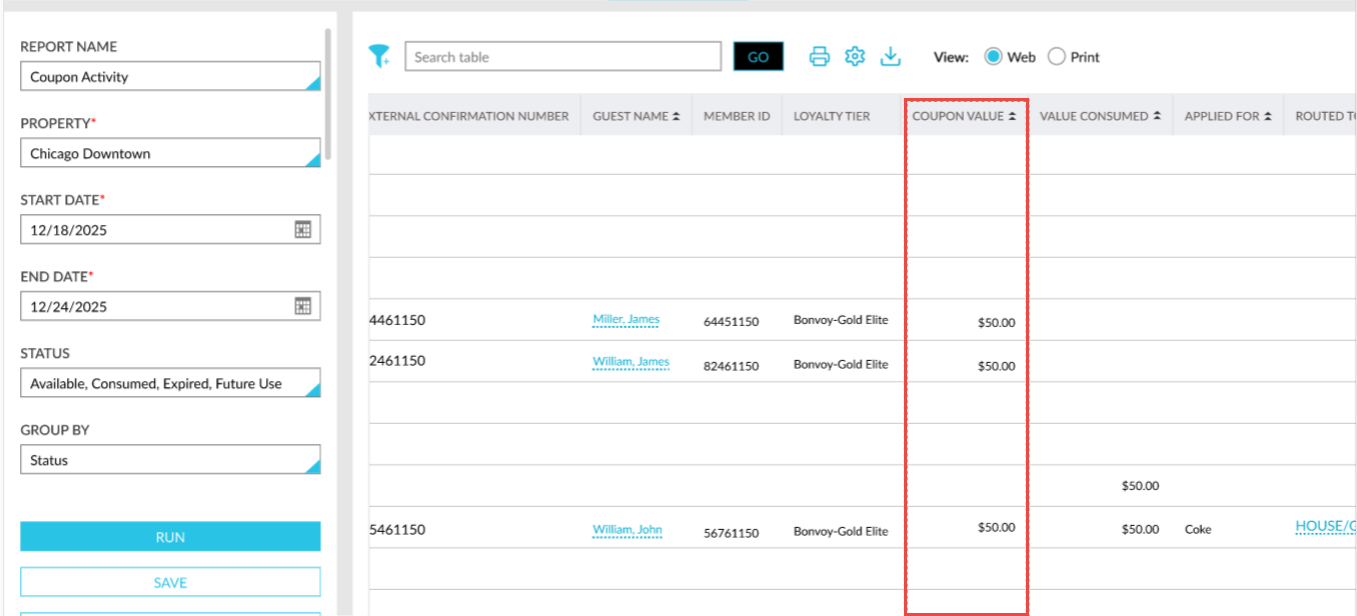
A new column, Coupon Value, has been added to the E-Coupon Activity report. This column displays the coupon value defined in the setup. The column is selected by default in the Column Settings pop-up screen.
Audit Log
The following operations are recorded in the Audit Log screen under the Coupon entity:
-
Creation of a new e-coupon.
-
Modifications to an existing e-coupon.
-
Updates to newly introduced fields, including:
-
Coupon Value
-
Valid Dates
-